My Experience with ChatGPT Plus

When I upgraded to ChatGPT Plus for $20 monthly, it wasn’t just an upgrade in my subscription, but an upgrade in my digital toolkit. This step into the advanced world of AI, granting me access to GPT-4 and DALL-E 3, was like unlocking a new dimension of possibilities.
A Gateway to Advanced AI
The journey began with exploring a diverse array of specialized GPT applications. From data analysis to design, the breadth of tools available was impressive. But the real excitement was in pushing these boundaries further.
Creating Custom AI Solutions
Motivated by the capabilities at my fingertips, I embarked on designing personalized GPTs:
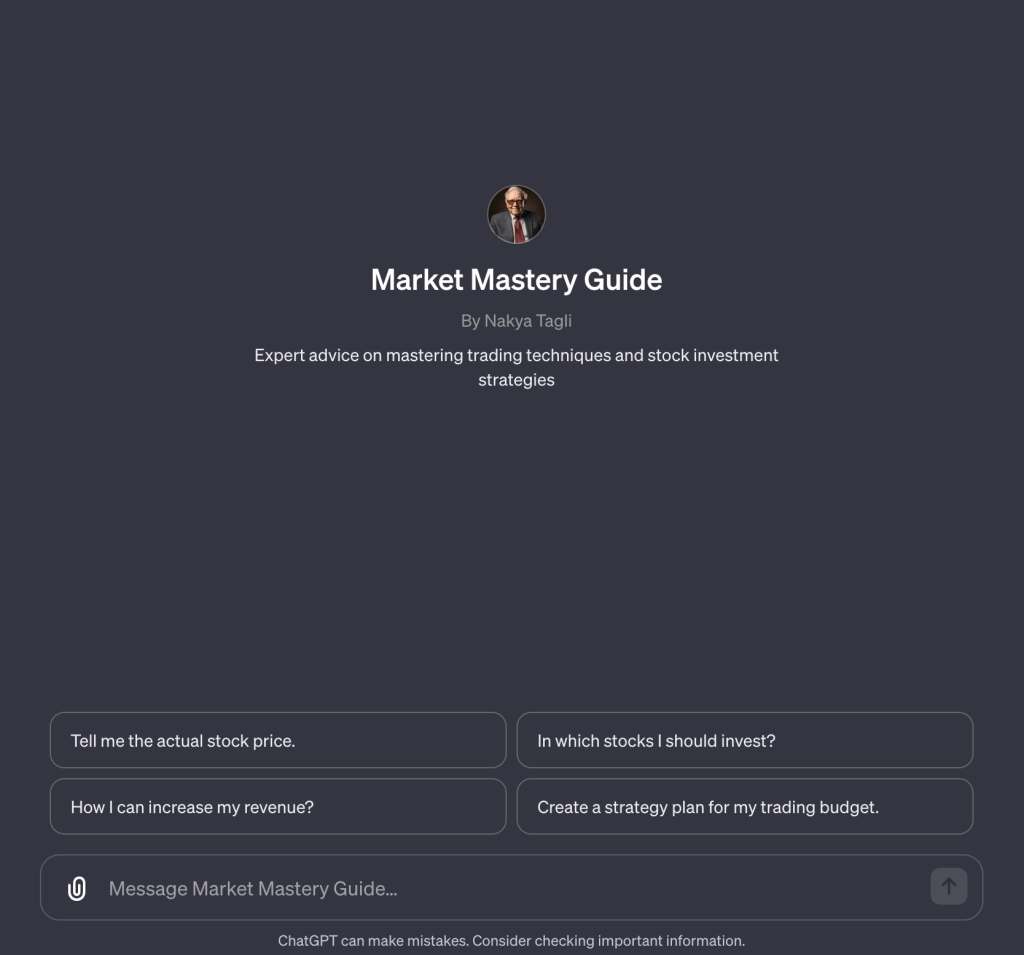
- Market Mastery Guide: This AI acts as a financial mentor, providing investment strategies and real-time stock market insights. It’s like having a finance guru in your pocket.
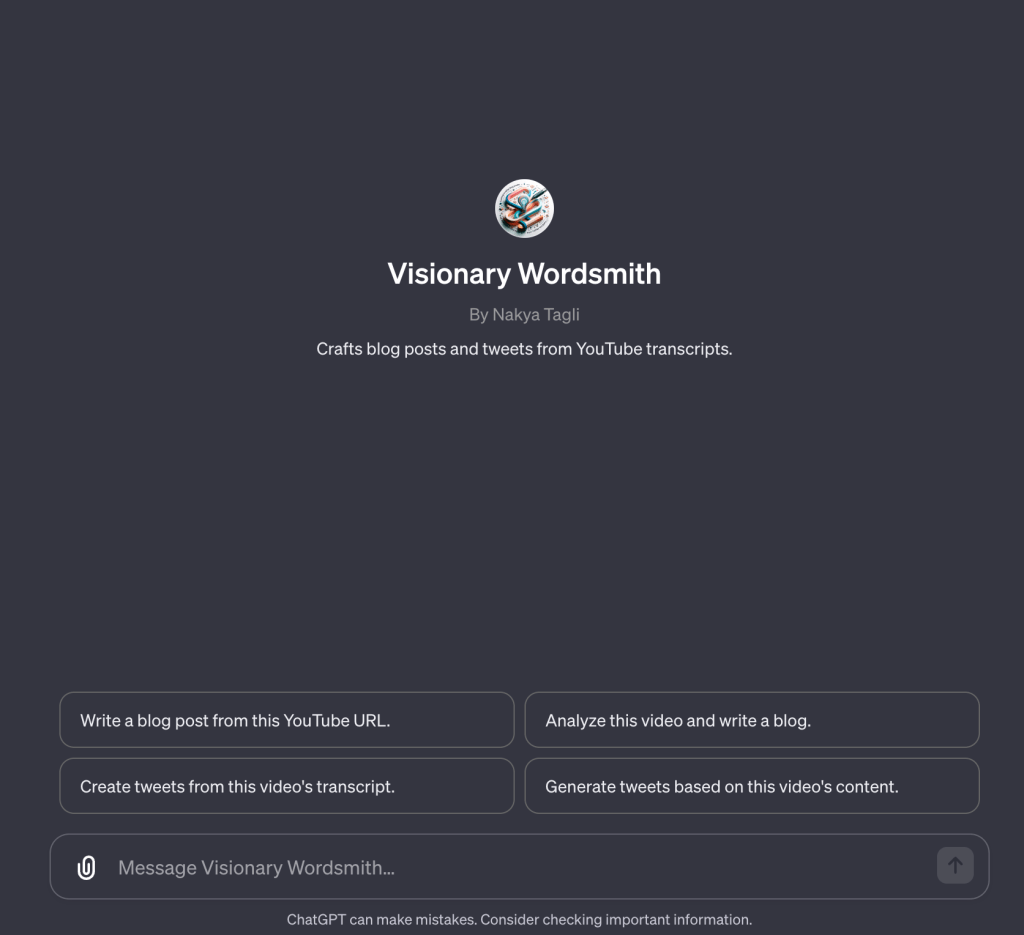
- Visionary Wordsmith: Transforming YouTube video transcripts into engaging blog posts and tweets, this AI showcases the power of content repurposing with ease and efficiency.
- Personal Task Wizard: A versatile assistant that streamlines email composition, document storage, and task automation through Zapier Actions. It exemplifies the seamless integration of AI into daily workflows.
Elevating AI Functionality
I didn’t stop at creation; I continuously enhanced my GPTs with additional functions and knowledge, exploring the full potential of these AI tools.
The Impact and Beyond
Engaging with ChatGPT Plus has revolutionized the way I approach tasks, content creation, and decision-making. It’s a testament to how AI can not only augment our capabilities but also inspire innovation and efficiency in our professional and personal lives.
This exploration is more than a narrative of technological adoption; it’s about envisioning and realizing the potential of AI to transform our world. Let’s embrace this journey together, unlocking the power of AI to create, innovate, and elevate our experiences.
Creating Custom GPTs with GPT Builder
Creating a custom GPT using GPT Builder in GPT Plus involves a straightforward process that allows users to tailor a ChatGPT for specific tasks or topics. Here’s a simple practical example to illustrate how one might create a custom GPT designed to help with cooking recipes:
- Starting the Creation Process: Navigate to chat.openai.com/gpts/editor or access it via your profile by selecting “My GPTs.” Then, click on “Create a GPT” to initiate the process.
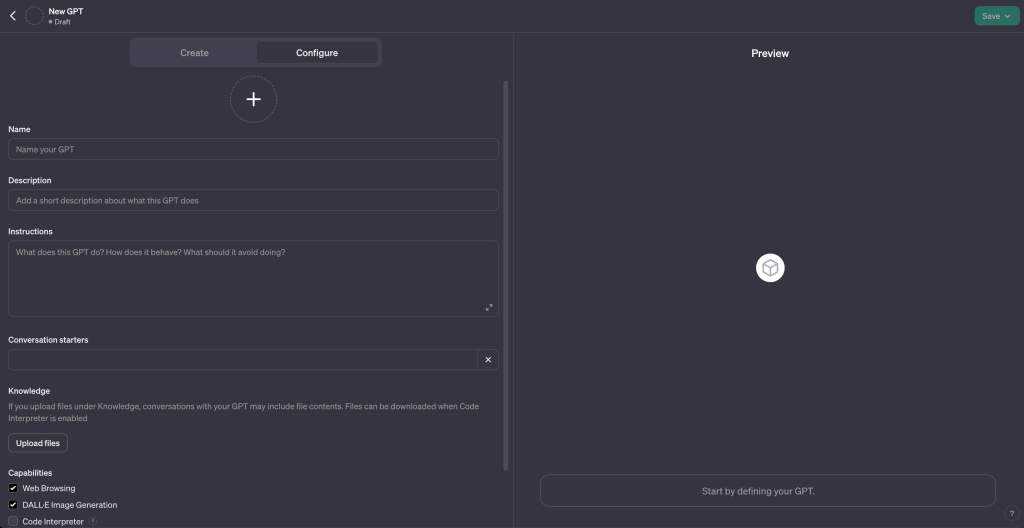
- Defining the GPT’s Purpose with GPT Builder: In the Create tab, interact with the GPT Builder by stating your GPT’s intended purpose. For our example, you could say, “Create a chef assistant that helps me with cooking recipes, including ingredient substitutions and cooking techniques.”
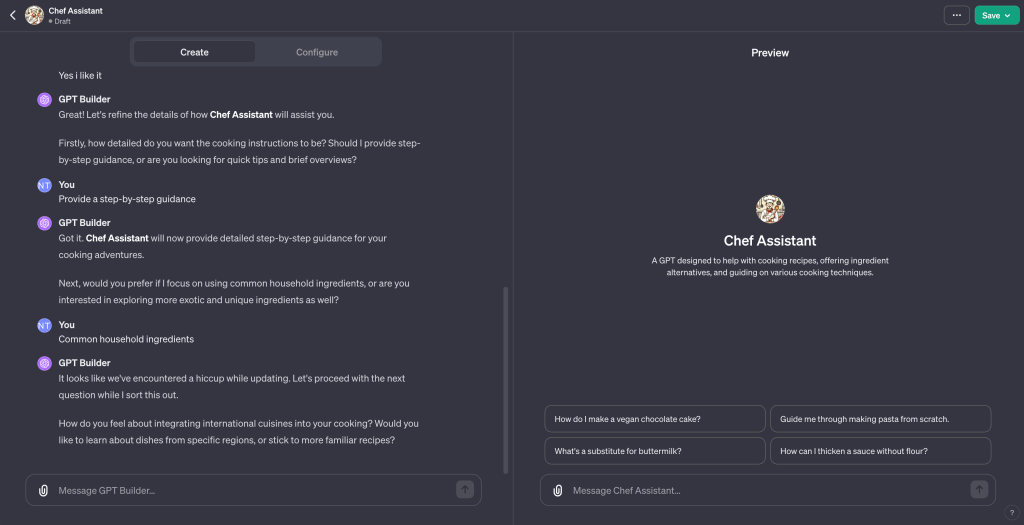
- Configuring Your GPT: Move to the Configure tab to give your GPT a name and a description that aligns with its purpose. For instance, name it “Chef Assistant” and describe it as “A GPT designed to help with cooking recipes, offering ingredient alternatives, and guiding on various cooking techniques.”
- Selecting Actions and Capabilities: Still in the Configure tab, choose actions your GPT should perform. For a cooking assistant, enabling web browsing could be useful for fetching new recipes or information on ingredients. If you wish to make your GPT visually engaging, you might also enable image creation to illustrate recipes or cooking techniques.
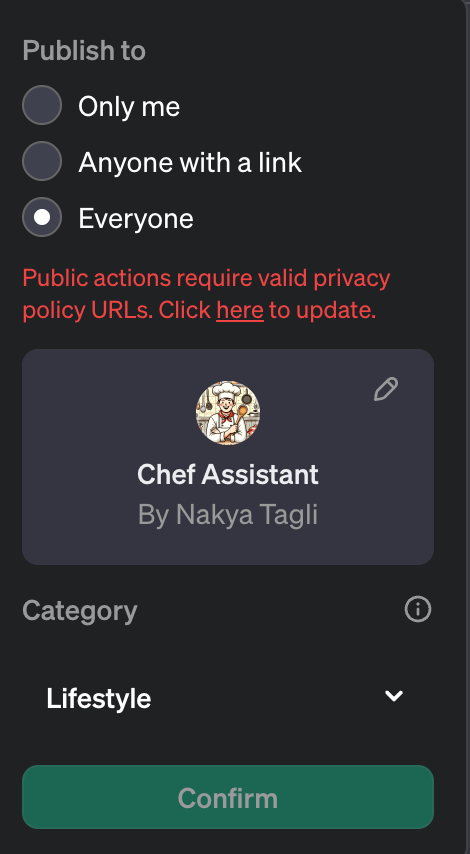
- Publishing Your GPT: Once you’re satisfied with the setup, click “Publish” to make your GPT available. You can choose to share it with others or keep it for personal use. If you wanna share it to the public, you must provide a Privacy Policy that can be hosted on your website.
- Advanced Customizations:
- Providing Detailed Instructions: Include instructions on how your GPT should interact with users, such as maintaining a friendly tone or avoiding complex culinary jargon
- Adding an Image: If you want a specific image to represent your GPT, you can upload one under the Configure tab.
- Setting Prompt Starters: Offer examples of prompts that users might use to start conversations with your GPT, like “How do I substitute eggs in a cake?” or “Show me a recipe for a vegetarian lasagna.”
- Adding Knowledge: Upload files or documents that contain cooking tips, recipes, or culinary techniques to enhance your GPT’s responses.
- Enabling New Capabilities: If your GPT needs to generate images (for example, to show how a finished dish should look), enable DALL·E Image Generation. Advanced Data Analysis could be useful for calculating nutritional information.
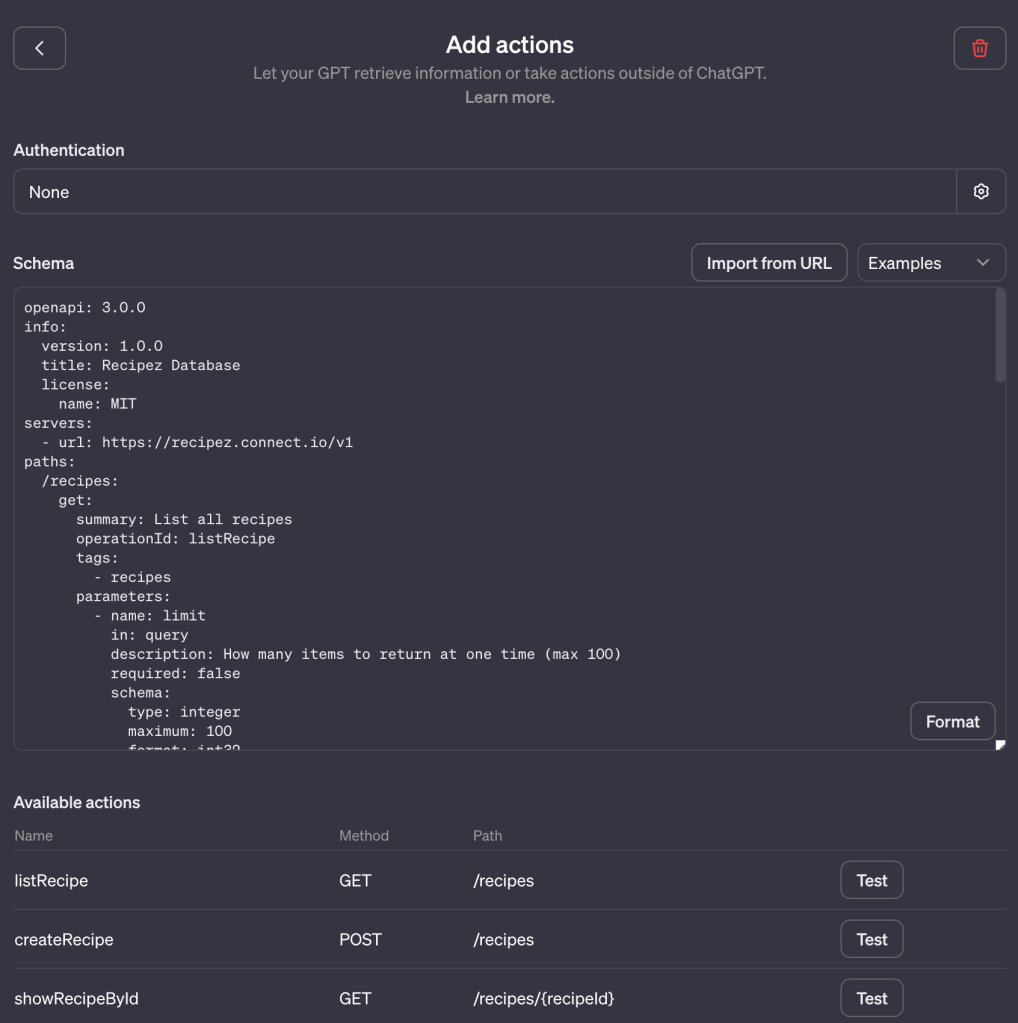
- Custom Actions: If you want your GPT to fetch recipes from a specific website or service, you can set up a custom action by specifying API endpoints and parameters.
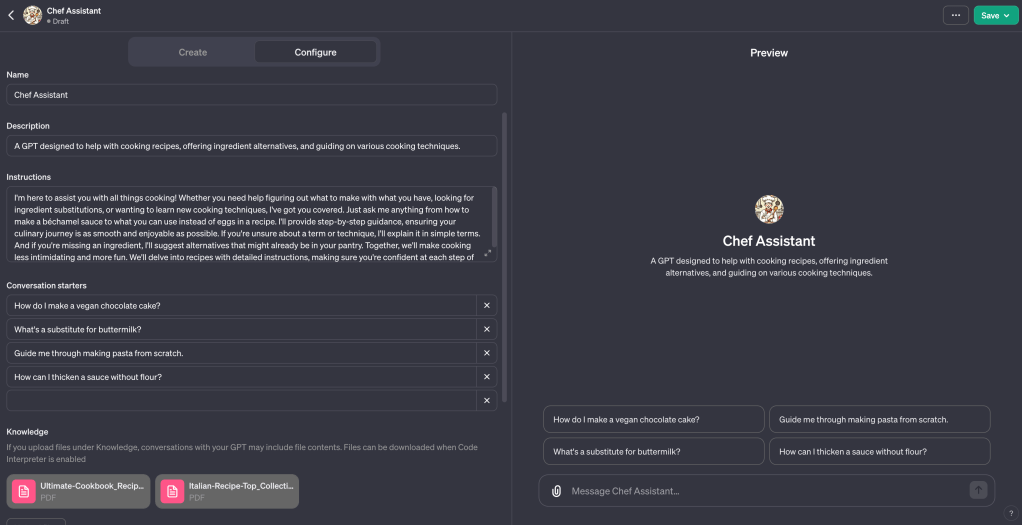
By following these steps, you can create a GPT tailored to your specific needs, leveraging the power of GPT Plus to provide a personalized assistant for any task or topic, such as cooking in this example. This process showcases the flexibility of GPT Builder, allowing users to craft a GPT that not only answers questions but also performs tasks, engages in specialized topics, and even integrates with third-party APIs for extended functionality.
My Custom GPT’s
To interact with the GPT, just click on the button below the image.
Market Mastery Guide
Visionary Wordsmith
 Nakya - Design, Tech & More
Lascia un commento